
IgnitionDeck Elementor Widgets
Table of Contents
- Overview
- Requirements
- Installation
- Getting Started
- Project Grid Widget
- Project Slider Widget
- Shared Display Elements
- Translations
- Frequently Asked Questions
- Troubleshooting
Overview
IgnitionDeck Elementor Widgets adds two powerful Elementor widgets for displaying your IgnitionDeck crowdfunding projects:
- Project Grid -- A responsive, filterable grid layout with optional masonry, pagination, and category filtering.
- Project Slider -- A full-screen carousel with animated text, background images, and navigation controls.
Both widgets pull data directly from your IgnitionDeck crowdfunding projects and provide extensive customization through the Elementor editor.
Heads up!
If you are using the Multifondo theme, this plugin is NOT required as these same modules are provided in the theme's own dependencies.
Requirements
| Requirement | Minimum Version |
|---|---|
| WordPress | 5.8 |
| PHP | 7.4 |
| Elementor | 3.5.0 |
| IgnitionDeck Crowdfunding | Installed & Active |
All three dependencies (WordPress, Elementor, and IgnitionDeck Crowdfunding) must be active before this plugin will load. If any dependency is missing, you will see an admin notice explaining what is needed.
Installation
- Upload the
ignitiondeck-elementor-widgetsfolder to your/wp-content/plugins/directory, or install the plugin through the WordPress Plugins screen. - Activate the plugin through the Plugins screen in WordPress.
- Verify that both Elementor and IgnitionDeck Crowdfunding are installed and activated.
- Open the Elementor editor on any page or post -- the new widgets will appear under the IgnitionDeck category in the widget panel.
Getting Started
- Open any page in the Elementor editor.
-
In the widget panel on the left, scroll to the IgnitionDeck category (or search for "Project Grid" or "Project Slider").
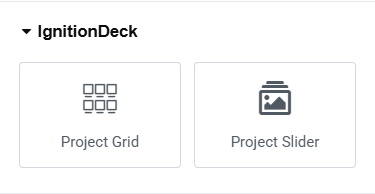
- Drag the widget onto your page.
- Configure the widget settings in the left panel.
- Click Publish or Update to save.
Project Grid Widget
The Project Grid widget displays your crowdfunding projects in a responsive card-based grid layout. It supports filtering by category, multiple pagination modes, and masonry layouts.
Grid Content Settings
Query
| Setting | Description | Default |
|---|---|---|
| Post Count | Number of projects to display. Use -1 to show all projects. |
6 |
| Categories | Filter by one or more project categories. Leave empty to show all. | All |
| Sort By | Order projects by date, title, menu order, last modified, or random. | Date |
| Order | Ascending or descending sort direction. | Descending |
| Offset | Skip a number of projects from the beginning of the results. | 0 |
Grid Layout
| Setting | Description | Default |
|---|---|---|
| Columns | Number of columns in the grid (1--6). | 3 |
| Layout Mode | Choose between Fit Rows (uniform rows) or Masonry (staggered). | Fit Rows |
| Grid Margin | Horizontal and vertical spacing between grid items in pixels. | 15 |
Pagination
| Setting | Description | Default |
|---|---|---|
| Pagination | Choose from: None, Default (numbered page links), Load More (button), or Infinite Scroll. | None |
| Button Text | Custom label for the Load More button (visible when Load More is selected). | Load More |
Category Filtering
| Setting | Description | Default |
|---|---|---|
| Show Filters | Display clickable category filter buttons above the grid. | Off |
| "All" Filter Text | Custom label for the "All" filter button that resets the filter. | All |
Grid Display Toggles
Each of the following elements can be individually shown or hidden:
| Toggle | What It Shows | Default |
|---|---|---|
| Show Categories | Category tags overlaid on the project image. | On |
| Show Author | "By [Author Name]" byline below the title. | On |
| Show Raised | The amount of funds raised (e.g., "$5,000 raised"). | On |
| Show Goal | The funding goal, displayed next to the raised amount. | On |
| Show Progress Bar | A visual progress bar showing funding completion. | On |
| Show Percent Funded | The funding percentage as text (e.g., "75% funded"). | On |
| Show Time Remaining | Days remaining in the campaign countdown. | On |
| Show View Button | A "View Project" button in the image overlay on hover. | On |
| View Button Text | Custom label for the view button. | View Project |
Grid Style Settings
The Style tab provides granular control over every visual element. Settings are organized into the following sections:
Card
- Background Color -- Card background. Global Color: Secondary.
- Border -- Card border style, width, and color.
- No-Image Background -- Background color shown when a project has no featured image. Global Color: Accent.
- Content Padding -- Inner spacing of the card content area.
Title
- Color -- Title text color. Global Color: Primary.
- Hover Color -- Title hover color. Global Color: Accent.
- Margin -- Spacing around the title.
- Typography -- Font settings. Global Typography: Primary.
Byline
- Color -- "By" text color. Global Color: Text.
- Author Name Color -- The author name link color. Global Color: Primary.
- Margin -- Spacing around the byline.
- Typography -- Font settings. Global Typography: Text.
Progress Bar
- Track Color -- Background color of the progress bar track.
- Fill Color -- Color of the filled portion. Global Color: Accent.
Meta Text
- Meta Text Color -- Color for label text (e.g., "raised", "funded"). Global Color: Text.
- Meta Value Color -- Color for value text (e.g., amounts, percentages). Global Color: Primary.
- Meta Margin -- Spacing around the meta section.
- Typography -- Font settings for meta text. Global Typography: Text.
Category Tags
- Color -- Tag text color. Global Color: Primary.
- Background Color -- Tag background.
- Padding -- Inner spacing of the tags.
- Typography -- Font settings. Global Typography: Accent.
Overlay
- Overlay Color -- Semi-transparent overlay shown on hover over the project image.
- Button Color and Button Border -- View Project button appearance.
- Typography -- Button font settings. Global Typography: Accent.
Load More Button (visible when pagination is set to Load More)
- Color, Background, Border -- Normal state styling.
- Hover Color, Hover Background, Hover Border -- Hover state styling.
- Typography -- Button font settings. Global Typography: Accent.
Filter Buttons (visible when category filtering is enabled)
- Alignment -- Left, center, or right alignment.
- Color -- Default button text color. Global Color: Text.
- Active Color -- Active filter button text color. Global Color: Primary.
- Border Color -- Default button border color.
- Active Border Color -- Active filter button border color. Global Color: Accent.
- Typography -- Font settings for filter buttons. Global Typography: Accent.
Project Slider Widget
The Project Slider widget displays your crowdfunding projects as a full-screen carousel with background images, text animations, and navigation controls.
Slider Content Settings
Query
| Setting | Description | Default |
|---|---|---|
| Post Count | Number of slides to include. | 5 |
| Categories | Filter by one or more project categories. | All |
| Sort By | Order by date, title, menu order, modified, random, or comment count. | Date |
| Order | Ascending or descending. | Descending |
| Offset | Skip a number of projects from the results. | 0 |
Slider Settings
| Setting | Description | Default |
|---|---|---|
| Transition | Slide animation type: Fade or Slide. | Fade |
| Transition Speed | Duration of the slide transition in milliseconds. | 600 |
| Autoplay | Automatically advance slides. | On |
| Autoplay Speed | Time between slide transitions in milliseconds. | 5000 |
| Pause on Hover | Pause autoplay when the user hovers over the slider. | On |
| Text Animation | Animation applied to slide text content: None, Zoom In, Zoom Out, Fade Up, Fade Down, Fade Left, Fade Right. | None |
| Navigation Arrows | Show navigation arrows: Always, On Hover, or Hidden. | Always |
| Bullet Indicators | Show slide indicator dots: Always, On Hover, or Hidden. | Always |
Slider Layout Settings
| Setting | Description | Default |
|---|---|---|
| Slider Height | Height of the slider. Supports px, vh, and em units. | 600px |
| Text Width | Width of the text content area (responsive per device). | 60% |
| Container Max Width | Maximum width of the inner content container. | 1140px |
| Content Padding | Padding around the content area. | -- |
| Text Alignment | Horizontal text alignment: left, center, or right. | Left |
| Vertical Position | Vertical placement of text content: top, middle, or bottom. | Middle |
| Horizontal Position | Horizontal placement of text block: left, center, or right. | Left |
Slider Display Toggles
| Toggle | What It Shows | Default |
|---|---|---|
| Show Categories | Category tags above the title. | On |
| Show Description | Project description text below the title. | On |
| Show Author | "By [Author Name]" byline. | On |
| Show Percent Funded | Funding percentage text. | On |
| Show Progress Bar | Visual progress bar. | On |
| Show Raised | Amount raised text. | On |
| Show Goal | Funding goal alongside raised amount. | On |
| Show Time Remaining | Days remaining in the campaign. | On |
| Show View Button | "View Project" call-to-action button. | On |
| View Button Text | Custom label for the button. | View Project |
Slider Style Settings
Overlay
- Background -- Overlay gradient or solid color on top of the slide background image. Use this to ensure text readability over images.
Title
- Color -- Title text color. Global Color: Secondary.
- Hover Color -- Title hover color. Global Color: Accent.
- Margin -- Spacing around the title.
- Typography -- Font settings. Global Typography: Primary.
Description
- Color -- Description text color.
- Margin -- Spacing around the description.
- Typography -- Font settings. Global Typography: Text.
Progress Bar
- Width and Height -- Dimensions of the progress bar.
- Track Color -- Background color of the progress bar track.
- Fill Color -- Color of the filled portion. Global Color: Accent.
- Margin -- Spacing around the bar.
Meta Text
- Meta Text Color -- Color for label text.
- Meta Value Color -- Color for value text. Global Color: Secondary.
- Meta Margin -- Spacing around the meta section.
- Typography -- Font settings for label text. Global Typography: Text.
- Value Typography -- Font settings for value text. Global Typography: Accent.
Byline
- Color and Author Name Color -- Byline text colors.
- Margin and Typography -- Spacing and font settings.
Button
- Color -- Button text color. Global Color: Secondary.
- Background -- Button background. Global Color: Accent.
- Border, Border Radius, Padding -- Button shape and spacing.
- Typography -- Font settings. Global Typography: Accent.
- Hover Color, Hover Background, Hover Border -- Hover state.
Category Tags
- Color, Background, Border, Border Radius, Padding -- Normal state.
- Typography -- Font settings. Global Typography: Accent.
- Hover Color, Hover Background, Hover Border -- Hover state.
Navigation
- Arrow Color and Arrow Hover Color -- Previous/next arrow styling.
- Bullet Color and Bullet Active Color -- Slide indicator dot styling.
Shared Display Elements
Both widgets share the following display elements, all powered by live data from your IgnitionDeck projects:
| Element | Description |
|---|---|
| Featured Image | The project's WordPress featured image. Grid shows it as a card thumbnail; Slider uses it as a full background. |
| Project Title | Linked to the project page. |
| Category Tags | Drawn from the project_category taxonomy. |
| Author Byline | Displays the WordPress post author with a "By" prefix. |
| Amount Raised | Current funds raised, formatted by IgnitionDeck. |
| Funding Goal | Target funding amount, formatted by IgnitionDeck. |
| Percent Funded | Calculated percentage of goal reached. |
| Progress Bar | Visual bar representing funding progress (0--100%). |
| Time Remaining | Days left in the campaign. Hidden for open-ended projects with no end date. |
Translations
The plugin is fully translation-ready using the ignitiondeck-elementor-widgets text domain. A .pot template file is included at languages/ignitiondeck-elementor-widgets.pot .
Translation File Types
| File | Description |
|---|---|
.pot |
Portable Object Template. The source file containing all translatable strings. |
.po |
Portable Object. The editable translation file for a specific language. |
.mo |
Machine Object. The compiled binary file WordPress loads at runtime. |
Creating a Translation
- Open
languages-default/ignitiondeck-elementor-widgets.potin a translation editor such as Poedit or Loco Translate (a WordPress plugin that lets you translate directly from the admin dashboard). - Select your target language and translate each string.
- Save the file. Your editor will generate a
.poand.mofile pair. - Place both files in the plugin's
languages/directory.
File Naming Convention
Translation files must follow the pattern ignitiondeck-elementor-widgets-{locale}.po and .mo , where {locale} is the WordPress locale code for your language.
| Language | Locale Code | Example Filename |
|---|---|---|
| French | fr_FR |
ignitiondeck-elementor-widgets-fr_FR.po |
| German | de_DE |
ignitiondeck-elementor-widgets-de_DE.po |
| Spanish | es_ES |
ignitiondeck-elementor-widgets-es_ES.po |
To preserve translation files during plugin updates, place them in the plugin's languages/ instead of the languages-default/ directory.
Frequently Asked Questions
Where do I find the widgets in Elementor?
Open the Elementor editor and look for the IgnitionDeck category in the widget panel on the left side. You can also search for "Project Grid" or "Project Slider" in the search bar.
Why don't I see any projects?
Make sure you have published projects created with IgnitionDeck Crowdfunding. The widgets query the ignition_product post type -- if no projects exist, the widgets will have nothing to display.
Can I show projects from specific categories only?
Yes. In the Query section of either widget, use the Categories dropdown to select one or more project categories. Only projects in those categories will be displayed.
How do I enable the masonry layout?
In the Project Grid widget, go to the Grid Layout section under the Content tab and change Layout Mode from "Fit Rows" to "Masonry". The grid will use a staggered layout that fills vertical gaps.
Can I use both widgets on the same page?
Yes. You can place multiple instances of either widget on the same page, each with its own independent settings and queries.
The slider text is hard to read over images. How do I fix this?
Go to the Style tab of the Slider widget, find the Overlay section, and add a semi-transparent background color or gradient. A dark overlay with 40--60% opacity typically provides good contrast for light text.
How does infinite scroll work?
In the Project Grid widget, set Pagination to "Infinite Scroll". As the user scrolls down and approaches the bottom of the grid, additional projects will load automatically. Make sure your Post Count is set to a reasonable per-page number (not -1 ), so there are additional pages of results to load.
What happens for projects without a featured image?
In the Grid widget, a placeholder background is shown instead (configurable in Style > Card > No-Image Background). In the Slider widget, the slide will display without a background image.
Can I customize the "View Project" button text?
Yes. In the Display section of either widget, look for the View Button Text field and enter your custom label.
Does the plugin support translations?
Yes. The plugin is fully translation-ready using the ignitiondeck-elementor-widgets text domain. Translation files can be placed in the /languages/ directory.
Troubleshooting
Admin notice: "Requires Elementor to be installed and activated"
Install and activate the Elementor plugin. The free version is sufficient.
Admin notice: "Requires Elementor version X or greater"
Update Elementor to version 3.5.0 or later through Plugins > Installed Plugins in your WordPress admin.
Admin notice: "Requires IgnitionDeck Crowdfunding to be installed and activated"
This plugin depends on the IgnitionDeck Crowdfunding plugin (which provides the Deck class). Install and activate it before using these widgets.
Grid filtering or layout isn't working
- Make sure JavaScript is not being blocked by a caching plugin or optimization tool. The grid relies on the Isotope library for layout and filtering.
- Check your browser console for JavaScript errors.
- Try clearing your site cache and any CDN cache.
Slider is not advancing automatically
- Verify that Autoplay is enabled in the Slider Settings.
- Check that the Autoplay Speed is set to a reasonable value (e.g., 5000ms = 5 seconds).
- If Pause on Hover is enabled, make sure your cursor is not hovering over the slider.
Styles are not applying in the Elementor editor
Some styles (particularly JavaScript-dependent features like Isotope layout and FlexSlider) render fully only on the published page. Use Elementor's Preview mode or view the published page to see the final result.